Transaction History Dashboard
How to use the AshePay transaction dashboard to view, filter, and verify every crypto payment.
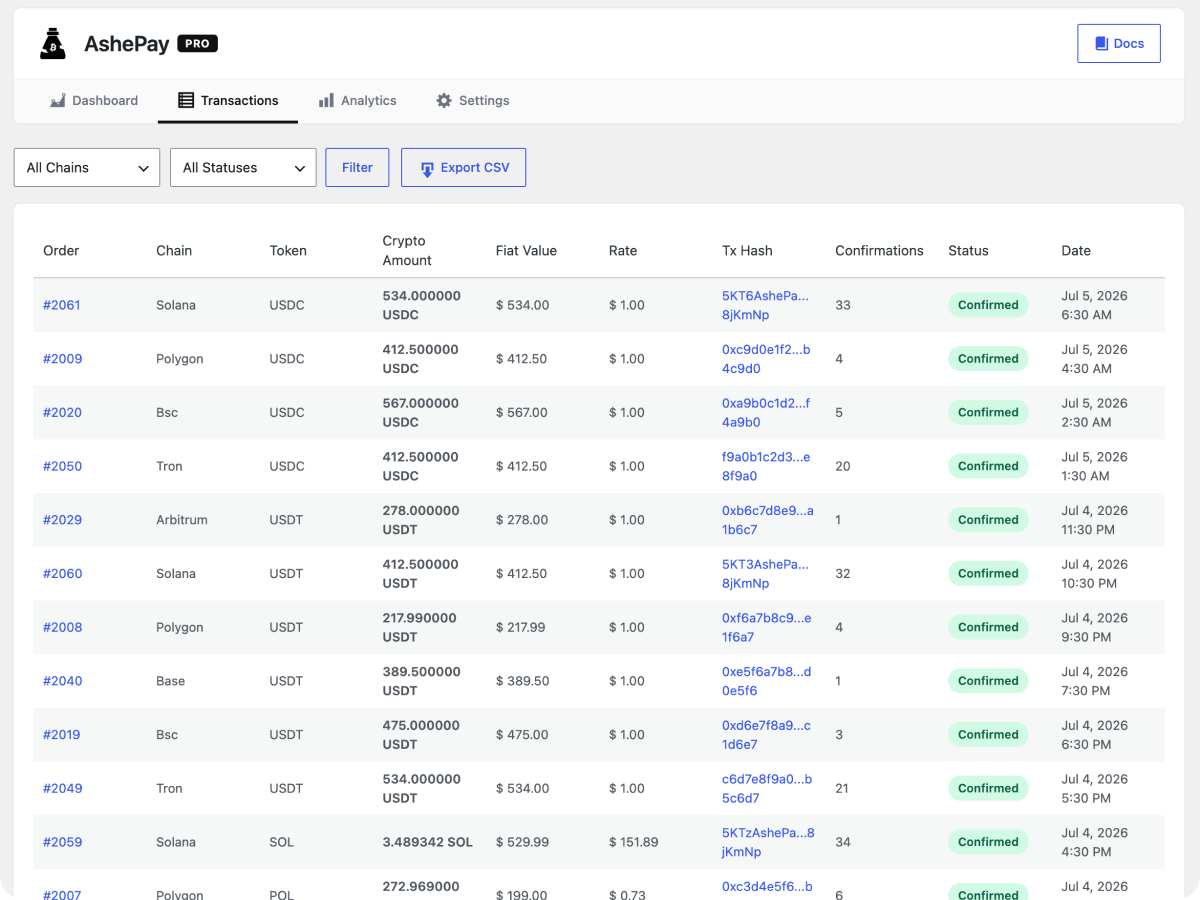
The transaction dashboard gives you a complete view of every crypto payment that has passed through your store. Go to AshePay → Transactions in your WordPress admin.
What you see at a glance
- Every payment — pending, detected, confirmed, cancelled, and expired
- Chain, token, crypto amount, and fiat equivalent for each order
- On-chain transaction hash (clickable link to the blockchain explorer)
- Confirmation count and required threshold
- Timestamp of when the payment was created
Status badges
Each payment row has a status badge showing where it is in the payment lifecycle:
- Pending (yellow) — Order placed, waiting for the customer to send crypto. Payment window is still open.
- Detected (blue) — A matching transaction was found on the blockchain. Waiting for confirmations.
- Confirming (blue) — Transaction has some confirmations but has not yet reached the required threshold.
- Confirmed (green) — Required confirmations reached. The WooCommerce order is marked as Processing.
- Cancelled (red) — Payment window expired before a transaction was detected, or the order was cancelled manually.
- Expired (gray) — Similar to cancelled — the payment window closed without a detected payment.
Filtering transactions
Use the filter bar at the top of the table to narrow down payments:
- By chain — Show only Ethereum, Bitcoin, Solana, etc.
- By status — Show only pending payments, confirmed payments, etc.
Filters can be combined. Leave both filters blank to see all transactions.
Retroactive payment sync
Every time you open the Transactions page, AshePay automatically runs a retroactive sync. This checks whether any payments in a pending/detecting state had their WooCommerce order manually completed or cancelled — and updates the AshePay status to match.
This means if you manually mark an order as Processing in WooCommerce (for example, after verifying a payment on-chain yourself), the corresponding AshePay transaction record will update to Confirmed the next time you open the Transactions page — no extra steps needed.
Clicking a transaction hash
The transaction hash in each row is a direct link to the blockchain explorer for that chain. For example, an Ethereum payment opens the transaction on etherscan.io; a Bitcoin payment opens it on mempool.space. This lets you verify any payment directly on-chain in one click.
The Transactions page shows 20 rows per page. Use the pagination controls at the bottom to navigate older payments.